Setup Guide 🚀
Step-by-Step Guide: Kubernetes Pizza Observability
This guide provides detailed instructions for setting up and running the Kubernetes Pizza Observability project. Follow these steps to deploy a system that automatically orders pizza when your Kubernetes cluster's CPU usage exceeds a threshold.
Table of Contents
- Infrastructure Setup
- Kubernetes Deployment
- Azure Function Setup
- Slack App Configuration
- Testing the System
- Monitoring and Maintenance
- Troubleshooting
Infrastructure Setup
1. Clone the Repository
# Clone the repository
git clone https://github.com/yourusername/k8s-pizza-observability.git
cd k8s-pizza-observability
2. Create Azure Service Principal
# Make the script executable
chmod +x scripts/create-sp.sh

# Run the script to create a service principal
./scripts/create-sp.sh
Note the output values for:
subscription_idtenant_idclient_idclient_secret
3. Configure Terraform
# Navigate to the terraform directory
cd terraform

# Create terraform.tfvars file
cat > terraform.tfvars << EOF
# Azure credentials
subscription_id = "your-subscription-id"
tenant_id       = "your-tenant-id"
client_id       = "your-client-id"
client_secret   = "your-client-secret"

# Cluster configuration
resource_group_name = "k8s-pizza-rg"
location            = "eastus"
cluster_name        = "k8s-pizza-cluster"
node_count          = 2
vm_size             = "Standard_D2s_v3"
min_node_count      = 1
max_node_count      = 5
dns_prefix          = "k8s-pizza"
environment         = "dev"
EOF
4. Deploy AKS Cluster
# Initialize Terraform
terraform init

# Plan the deployment
terraform plan

# Apply the configuration
terraform apply

# Configure kubectl to use the new cluster
az aks get-credentials --resource-group k8s-pizza-rg --name k8s-pizza-cluster

# Verify the connection
kubectl get nodes
Kubernetes Deployment
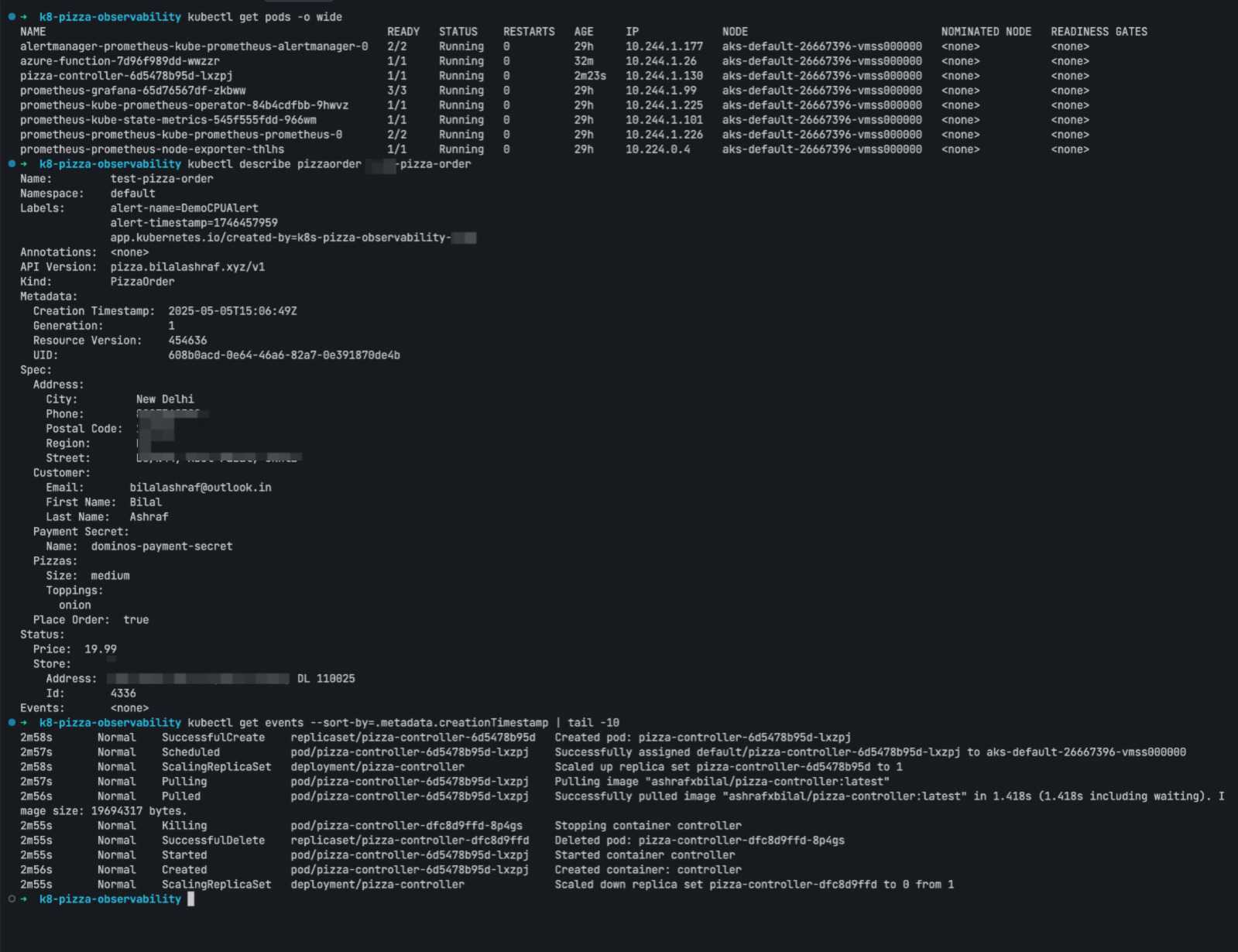
The kubectl command line tool is essential for managing your Kubernetes cluster
1. Deploy Prometheus and Grafana
# Add Prometheus Helm repository
helm repo add prometheus-community https://prometheus-community.github.io/helm-charts
helm repo update

# Install Prometheus Stack with custom values
helm install prometheus prometheus-community/kube-prometheus-stack -f kubernetes/prometheus-values.yaml

# Verify the deployment
kubectl get pods -n default
2. Deploy Pizza Controller
# Create the PizzaOrder CRD
kubectl apply -f kubernetes/crds/pizzaorders.yaml

# Create the Dominos payment secret (replace with your actual payment details)
kubectl apply -f kubernetes/dominos-payment-secret.example.yaml

# Deploy the Pizza Controller
kubectl apply -f kubernetes/controller/pizza-controller-deployment.yaml

# Verify the deployment
kubectl get pods
Azure Function Setup
1. Deploy Azure Function
# Navigate to the azure-function directory
cd azure-function

# Create local.settings.json from example
cp local.settings.json.example local.settings.json

# Edit local.settings.json with your settings
# Update the following values:
# - CUSTOMER_* (your contact information)
# - DELIVERY_* (your delivery address)
# - PIZZA_* (your pizza preferences)
# - DOMINOS_* (API credentials)
# - SLACK_WEBHOOK_URL (if using Slack integration)
2. Deploy to Azure
# Login to Azure
az login

# Create a resource group (if not already created by Terraform)
az group create --name k8s-pizza-func-rg --location eastus

# Create a storage account
az storage account create --name k8spizzafuncstorage --location eastus --resource-group k8s-pizza-func-rg --sku Standard_LRS

# Create a function app
az functionapp create --resource-group k8s-pizza-func-rg --consumption-plan-location eastus --runtime node --runtime-version 14 --functions-version 4 --name k8s-pizza-func --storage-account k8spizzafuncstorage

# Deploy the function
func azure functionapp publish k8s-pizza-func
3. Configure Function App Settings
# Set application settings from local.settings.json
az functionapp config appsettings set --name k8s-pizza-func --resource-group k8s-pizza-func-rg --settings @local.settings.json
Slack App Configuration
1. Create a Slack App
Visit the Slack API Apps page and create a new app:
- Click "Create New App" and select "From scratch"
- Name your app (e.g., "K8s Pizza Bot") and select your workspace
- Click "Create App"
2. Configure App Features
Set up the following features:
- OAuth & Permissions: Add scopes like
chat:write,commands, etc. - Interactivity: Enable and set the Request URL to your Azure Function endpoint
- Slash Commands: Create commands like
/pizza-status
3. Install App to Workspace
Install the app to your workspace and note the Bot User OAuth Token.
4. Update Azure Function Settings
# Update the SLACK_BOT_TOKEN setting
az functionapp config appsettings set --name k8s-pizza-func --resource-group k8s-pizza-func-rg --settings SLACK_BOT_TOKEN=xoxb-your-token
Testing the System
1. Test Alert Triggering
# Create a test alert
kubectl apply -f kubernetes/http-test-alert.yaml

# Check if the alert was received by the Azure Function
# Check the Azure Function logs
az functionapp log tail --name k8s-pizza-func --resource-group k8s-pizza-func-rg
2. Test Pizza Ordering
# Create a sample PizzaOrder resource
kubectl apply -f kubernetes/samples/pizzaorder-sample.yaml

# Check the status of the order
kubectl get pizzaorder
kubectl describe pizzaorder pepperoni-special
Monitoring and Maintenance
1. Access Grafana Dashboard
# Get the Grafana admin password
kubectl get secret prometheus-grafana -o jsonpath="{.data.admin-password}" | base64 --decode

# Port-forward Grafana service
kubectl port-forward svc/prometheus-grafana 3000:80

# Access Grafana at http://localhost:3000 (username: admin)
2. Monitor Pizza Orders
# List all pizza orders
kubectl get pizzaorder

# Get details of a specific order
kubectl describe pizzaorder
Troubleshooting
Common Issues
- Pizza Controller not working: Check logs with
kubectl logs deployment/pizza-controller - Azure Function not receiving alerts: Verify AlertManager configuration and check Function logs
- Slack integration issues: Verify bot token and permissions
Debugging Tips
# Check AlertManager configuration
kubectl get secret alertmanager-prometheus-kube-prometheus-alertmanager -o jsonpath='{.data.alertmanager\.yaml}' | base64 --decode

# Test Azure Function locally
cd azure-function
func start

# Send a test alert payload
curl -X POST http://localhost:7071/api/OrderPizza -d @../kubernetes/pizza-test-alert.json --header "Content-Type: application/json"